
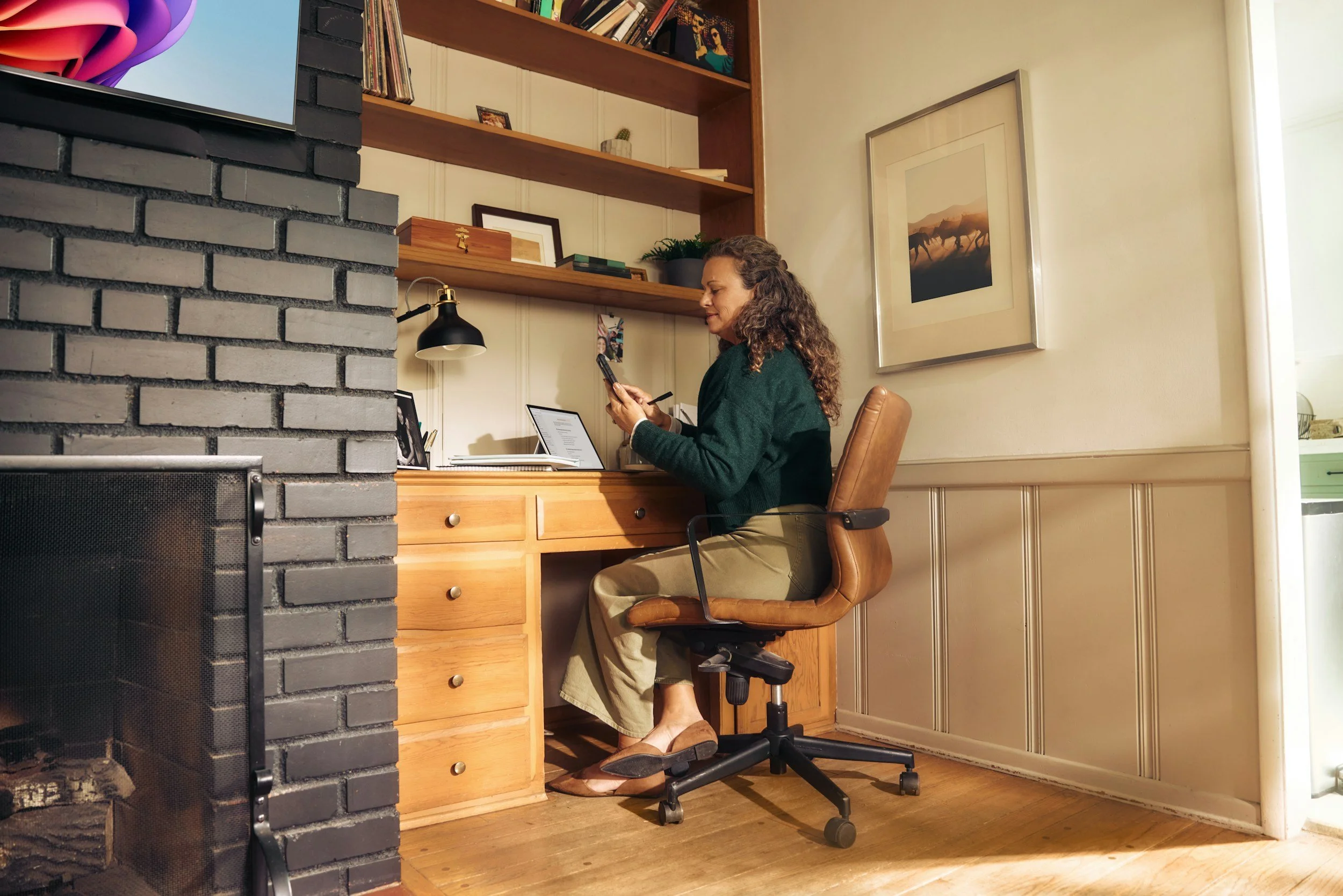
A healthier home office does not require an expensive desk or a room full of specialized equipment. The main goal is to arrange the screen, chair, keyboard, and frequently used items so you can work without repeatedly reaching, twisting, or holding an uncomfortable position.
No single posture is ideal for an entire workday. A useful workstation supports the body while making it easy to change positions and take short movement breaks.
Start With the Chair
Adjust the chair before moving the computer. Sit close enough to the desk that you can reach the keyboard without leaning forward.
A supportive seated position generally includes:
Lower back supported by the chair
Shoulders relaxed rather than raised
Elbows close to the body
Forearms approximately parallel to the floor
Wrists aligned with the forearms
Thighs roughly parallel to the floor
Feet supported by the floor or a stable footrest
If the chair is too low, raise it until the elbows can remain near keyboard height. If raising it leaves the feet unsupported, add a footrest. A sturdy box or firm platform may work as a temporary solution if it does not slide or collapse.
Avoid sitting on the front edge of the chair for long periods. Move the hips back so the backrest can provide support.
Adjust the Desk Around Your Elbows
The keyboard and mouse should be near elbow height. A desk that is too high can cause raised shoulders, while one that is too low may encourage slouching.
If the desk is fixed, adjust the chair first and support the feet afterward. A keyboard tray may help when the work surface is unusually high, but it should be wide and stable enough for both the keyboard and mouse.
Clear boxes, computer equipment, and other objects from beneath the desk. There should be enough room to move the legs and sit close to the work surface.
Protect the forearms from sharp desk edges. A rounded edge or firm padding can reduce pressure where the arms contact the surface.
Position the Monitor Directly in Front
Place the primary monitor directly in front of the chair so you do not need to keep the neck turned. The top of the screen should generally be at or slightly below eye level.
OSHA guidance suggests positioning a monitor at least 20 inches from the eyes, with a commonly comfortable range of approximately 20 to 40 inches. The correct distance also depends on screen size, eyesight, and text settings.
Move the screen closer or enlarge the text if you find yourself leaning forward to read. Raising the monitor will not help if the display is too far away or the text is too small.
People who wear bifocals or progressive lenses may need the screen slightly lower to avoid tilting the head backward.
Set Up Multiple Monitors Based on Use
If one monitor is used most often, place it directly in front and position the secondary screen beside it.
If both monitors are used equally, place them close together and center the meeting point in front of you. Keep the screens at similar heights and distances when possible.
Avoid putting the main monitor far to one side. Repeatedly turning the head and upper body in the same direction may become uncomfortable over a long workday.
Improve a Laptop Setup
A laptop connects the keyboard and screen, making it difficult to position both correctly during prolonged work. Raising the laptop improves screen height but makes the keyboard harder to reach. Keeping it on the desk improves keyboard access but usually places the screen too low.
For regular laptop work, use:
A laptop stand or stable riser
An external keyboard
A separate mouse or trackpad
The setup does not need to be elaborate. A stable stack of large books may raise the screen, provided the laptop has adequate ventilation and cannot slide.
Working from a couch or bed occasionally may be comfortable, but these positions often provide poor screen height, limited back support, and little space for the arms. Use a desk or table for longer work sessions when possible.
Keep the Keyboard and Mouse Close
Place the keyboard directly in front and keep the mouse beside it at the same level. Reaching forward or to the side for the mouse can strain the shoulder over time.
Keep the wrists straight rather than bent sharply upward, downward, or sideways. Wrist rests are intended to support the palms during pauses, not to press against the wrists while typing continuously.
If a full-size keyboard pushes the mouse too far away, consider a compact keyboard without a number pad. A separate number pad can be added if calculations are only an occasional part of the job.
Choose a mouse that fits the hand and feels comfortable. An expensive or unusual design is not automatically better. Placement, task demands, and personal comfort matter.
Control Glare and Lighting
Position the monitor so windows are generally to the side rather than directly in front of or behind the screen. This can reduce reflections and large differences in brightness.
Adjust blinds or curtains when daylight creates glare. Use a separate task light for paperwork instead of making the entire room unusually bright.
The screen should be easy to read without squinting. Adjust brightness, contrast, text size, and display scaling based on the room and the work being performed.
Clean the screen regularly. Dust, fingerprints, and smudges can reduce clarity and make glare more noticeable.
Arrange Frequently Used Items Within Reach
Keep the phone, notebook, water, and other frequently used items near the body. Objects used only occasionally can be stored farther away.
If you regularly read printed material while typing, use a document holder near the monitor at a similar height and distance. This can reduce repeated movement between the desk and screen.
Use a headset or speaker function for calls that require typing. Holding a phone between the shoulder and ear can place the neck in an awkward position.
Add Movement to the Workday
A well-arranged workstation does not remove the need to move. NIOSH notes that short breaks during computer work can help reduce discomfort.
Possible movement habits include:
Standing while taking a phone call
Walking during part of a lunch break
Refilling water between tasks
Changing position after a meeting
Alternating computer work with non-screen tasks
Taking a short stretch or movement break each hour
A standing desk is optional. Standing in one position for long periods can also become uncomfortable. If you work while standing, keep the keyboard near elbow height, position the screen appropriately, and alternate between sitting, standing, and moving.
Rest the Eyes
Extended screen use can contribute to tired or dry eyes because people may blink less while concentrating.
Periodically look away from the screen and focus on something farther away. Blink deliberately, adjust overly small text, and take breaks from visually demanding work.
Persistent eye discomfort, headaches, blurred vision, or difficulty focusing may warrant an eye examination. Screen-related discomfort can sometimes reflect an uncorrected vision issue rather than the workstation alone.
Keep the Workspace Safe
A healthier workstation should also reduce basic household hazards.
Check that:
Cords do not cross walking paths
Power strips are used within their rated capacity
Drinks are kept away from electronics
Shelves and monitor arms are secure
Air vents are not blocked
The chair moves safely on the floor surface
Frequently used equipment is stable
Emergency exits remain clear
Do not connect multiple power strips together. Damaged cords, hot outlets, sparks, or a burning smell require prompt attention.
Improve the Setup in the Right Order
Before buying new furniture, identify the exact source of discomfort. Many problems can be improved by changing equipment placement.
A practical adjustment order is:
Set the chair height and back support.
Support the feet if necessary.
Place the keyboard and mouse near elbow height.
Move the monitor directly in front.
Adjust the screen height and viewing distance.
Reduce glare and improve lighting.
Move frequently used items closer.
Add regular changes in posture and short breaks.
Test each change for several workdays. A different chair, keyboard, or desk may be useful when adjustments cannot produce a comfortable position, but price alone does not determine whether equipment will fit the user.
Pay Attention to Persistent Symptoms
Temporary stiffness may improve after changing position, but persistent pain, numbness, tingling, weakness, swelling, or symptoms that interrupt sleep should not be ignored.
Report work-related concerns through the appropriate employer process when applicable. A healthcare professional or qualified ergonomics specialist can help evaluate ongoing symptoms and individual needs.
A healthier home office is adjustable, uncluttered, and easy to move within. Start with the chair and keyboard, place the screen where it can be viewed without bending the neck, and build movement into the workday.
This article provides general educational information and is not individualized medical, ergonomic, or workplace-safety advice.
