
How Long Should a Home Router Last? Signs It Is Time to Upgrade
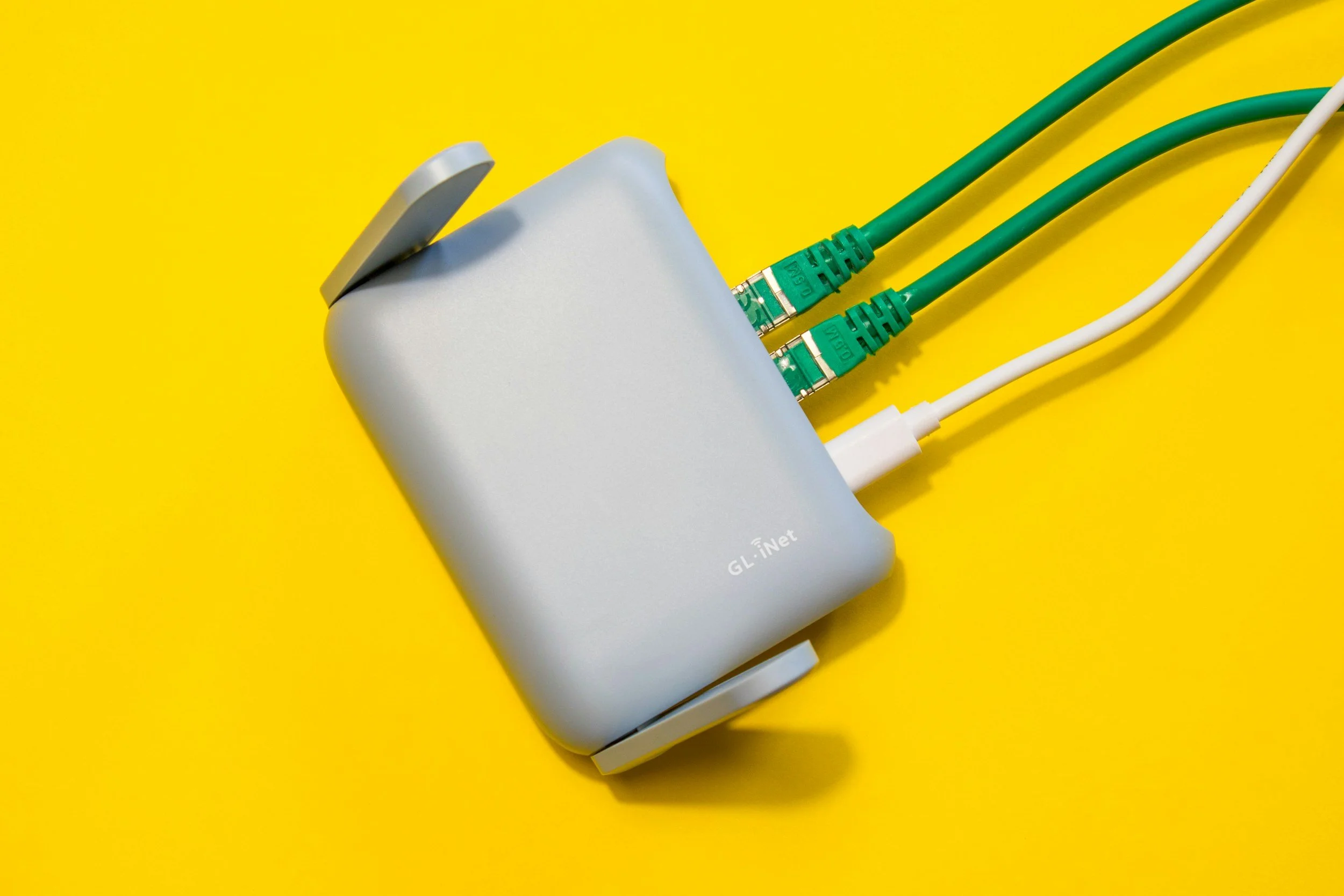
A home router does not have a fixed expiration date. A well-supported router may continue working for several years, while another may need replacement sooner because of failing hardware, discontinued security updates, poor coverage, or a growing number of connected devices.
Around four to five years is a practical point to review a router’s performance and manufacturer support. Age alone, however, is not a reason to replace equipment that remains secure, reliable, and suitable for the household.
Router Lifespan Depends on More Than Age
Several factors affect how long a router remains useful:
Whether the manufacturer still releases security updates
Heat, ventilation, and electrical conditions
The number of connected devices
Internet plan speed
Home size and construction
Available Wi-Fi standards
Ethernet port capabilities
Changes in household use
Hardware quality
Whether the router operates continuously under heavy demand
A router used in a small apartment for basic browsing may remain adequate longer than one serving a large home with remote workers, security cameras, game consoles, smart appliances, and several streaming devices.
The goal is not to own the newest model. It is to have equipment that remains secure and meets the home’s actual needs.
First, Identify the Equipment
The terms modem and router are often used interchangeably, but they perform different jobs.
A modem or fiber terminal connects the home to the internet provider. A router distributes that connection to devices through Wi-Fi and Ethernet. Some providers supply a gateway that combines modem and router functions in one unit.
Before replacing anything, identify which device is causing the problem. A new router will not correct a failing modem, a damaged incoming line, or an internet service outage.
If the equipment belongs to the internet provider, contact the provider before buying a replacement. The company may replace an outdated gateway, require approved equipment, or need to change settings before a customer-owned router can be used.
Sign 1: The Router No Longer Receives Security Updates
Ending firmware support is one of the strongest reasons to replace a router.
Firmware is the software built into the router. Manufacturers use updates to fix security vulnerabilities, correct bugs, and improve reliability. A router can continue providing internet access after support ends, but it may no longer receive protection against newly discovered problems.
Find the exact model and hardware version on the label or in the router’s management app. Then check the manufacturer’s support page for:
Recent firmware releases
Security advisories
End-of-service notices
Automatic-update settings
The correct firmware for that hardware version and region
Enable automatic updates when the manufacturer provides that option. For manual updates, follow the official instructions and use only firmware intended for the exact model and hardware revision.
If the manufacturer has formally ended security support, replacement is usually more sensible than continuing to rely on an unpatched device.
Sign 2: Connections Drop or the Router Restarts Repeatedly
Occasional interruptions can result from an internet provider outage, wireless interference, or a device-specific problem. Repeated disconnects across several devices deserve closer attention.
Possible router problems include:
Unexpected restarts
Failure to stay connected to the modem
Wi-Fi disappearing until the router is rebooted
Ethernet connections dropping
Settings resetting without explanation
Unusual heat
Warning lights indicating repeated faults
Before replacing the router, install available firmware updates, restart the modem and router properly, inspect cables, and test another power outlet. If the manufacturer uses an external power adapter, a failing adapter may cause instability.
Persistent problems after basic troubleshooting may indicate deteriorating hardware.
Sign 3: The Router Cannot Deliver the Speed You Pay For
A new router cannot make an internet plan faster than the provider delivers. It can help only when the existing router is the bottleneck.
Test a computer connected directly by Ethernet when practical. Compare that result with Wi-Fi performance close to the router.
Slow Wi-Fi may be caused by:
An older wireless standard
Limited Ethernet port speeds
Congested channels
Poor router placement
Thick walls or metal obstructions
Interference from nearby networks
An overloaded router
Older phones or computers
Provider-side congestion
If the wired connection reaches the expected speed but Wi-Fi remains substantially slower near the router, the wireless equipment or device may be limiting performance.
Remember that advertised Wi-Fi speeds are theoretical shared capacities, not guaranteed speeds for every device.
Sign 4: Coverage Is Poor in Important Rooms
Weak coverage does not automatically mean the router is obsolete. Placement often matters as much as hardware.
For better coverage, place the router:
Near the center of the usable area
In an open, elevated position
Away from large metal objects
Away from enclosed cabinets
Clear of excessive heat
Away from common sources of interference when possible
If relocation does not solve the problem, consider whether the home needs a mesh system or additional wired access points rather than one more powerful router.
Mesh Wi-Fi can help cover larger or unusually shaped homes, but performance depends on node placement and how the nodes communicate. A wired connection between access points usually provides more consistent capacity than a wireless connection, where installation allows it.
Sign 5: The Router Struggles With Many Devices
A household may outgrow a router even when its internet plan has not changed.
Phones, televisions, speakers, thermostats, cameras, appliances, computers, and game consoles can remain connected at the same time. Some use little data, while others create substantial traffic or require low latency.
Possible signs of capacity problems include:
Video calls becoming unstable when someone streams
Games lagging during large downloads
Smart devices frequently going offline
Long delays when new devices connect
Performance falling sharply during busy hours
The router becoming unresponsive under load
Before upgrading, check for unauthorized devices, background uploads, automatic backups, or one computer consuming most of the connection. Quality-of-service settings may help prioritize important traffic, although their effectiveness varies by router.
Sign 6: It Lacks Features the Household Now Needs
An older router may work reliably but lack useful security or management features.
Reasons to consider an upgrade may include the need for:
Current Wi-Fi security options such as WPA3
A separate guest network
Better support for many simultaneous devices
Faster Ethernet ports
Improved parental controls
Automatic firmware updates
Separate networks for smart-home devices
A mesh-compatible system
Better management and monitoring tools
Confirm that household devices support the feature before paying for it. A newer Wi-Fi standard provides its greatest benefit when the router and connected devices both support compatible capabilities.
Some router features also require paid subscriptions. Check what remains available without an ongoing fee.
Troubleshoot Before Buying a New Router
Use a short process to rule out common causes:
Check the internet provider’s outage information.
Restart the modem and router according to the manufacturer’s instructions.
Install the latest official firmware.
Test several devices.
Compare Ethernet and Wi-Fi speeds.
Test Wi-Fi close to the router.
Inspect Ethernet and power cables.
Move the router to a more open, central location.
Check for overheating or blocked ventilation.
Review the connected-device list.
Contact the internet provider if the incoming connection appears unstable.
A factory reset can resolve some configuration problems, but it erases customized settings. Back up supported configurations and record important information before using it as a final troubleshooting step.
What to Compare When Buying a Replacement
Choose a router for the home’s requirements rather than selecting the model with the largest advertised speed number.
Compare:
Manufacturer security-support practices
Automatic firmware-update availability
Wi-Fi standards supported by current devices
Home size and construction
Number of users and devices
Ethernet port quantity and speed
Mesh or access-point support
Guest and smart-device network options
Included security features
Subscription requirements
Ease of setup and management
Compatibility with the internet provider
For a modest home and internet plan, a well-supported midrange router may be enough. A larger home or demanding network may benefit more from a mesh system or wired access points than from an expensive single-router model.
Do You Need to Replace an ISP Router?
If the provider charges a monthly equipment fee, compare that expense with the cost and expected support life of compatible equipment. Confirm that returning the provider’s router will actually remove the fee.
Provider-owned equipment may offer easier technical support and automatic configuration. Customer-owned equipment can provide more control, but the owner becomes responsible for compatibility, setup, security updates, and replacement.
Some services require the provider’s gateway to remain installed even when a separate router is used. Ask about bridge or passthrough modes before purchasing equipment.
Secure the New Router Properly
After installing a replacement:
Change the administrator password
Use a strong, unique Wi-Fi password
Install current firmware
Enable automatic updates when available
Use WPA2 or WPA3 rather than outdated security modes
Disable remote administration unless it is needed and secured
Create a guest network for visitors
Review connected devices periodically
Save recovery information securely
Do not keep an unsupported old router online as a repeater or secondary access point unless it can still be maintained securely.
The Bottom Line
Four to five years is a useful checkpoint for evaluating a home router, not a mandatory replacement schedule.
Upgrade when the router no longer receives security fixes, develops persistent hardware problems, limits the internet connection, cannot cover the home adequately, or struggles with the number and type of connected devices.
Troubleshoot first. If the existing router remains supported and performs well after updates and placement adjustments, there may be no practical reason to replace it yet.
