
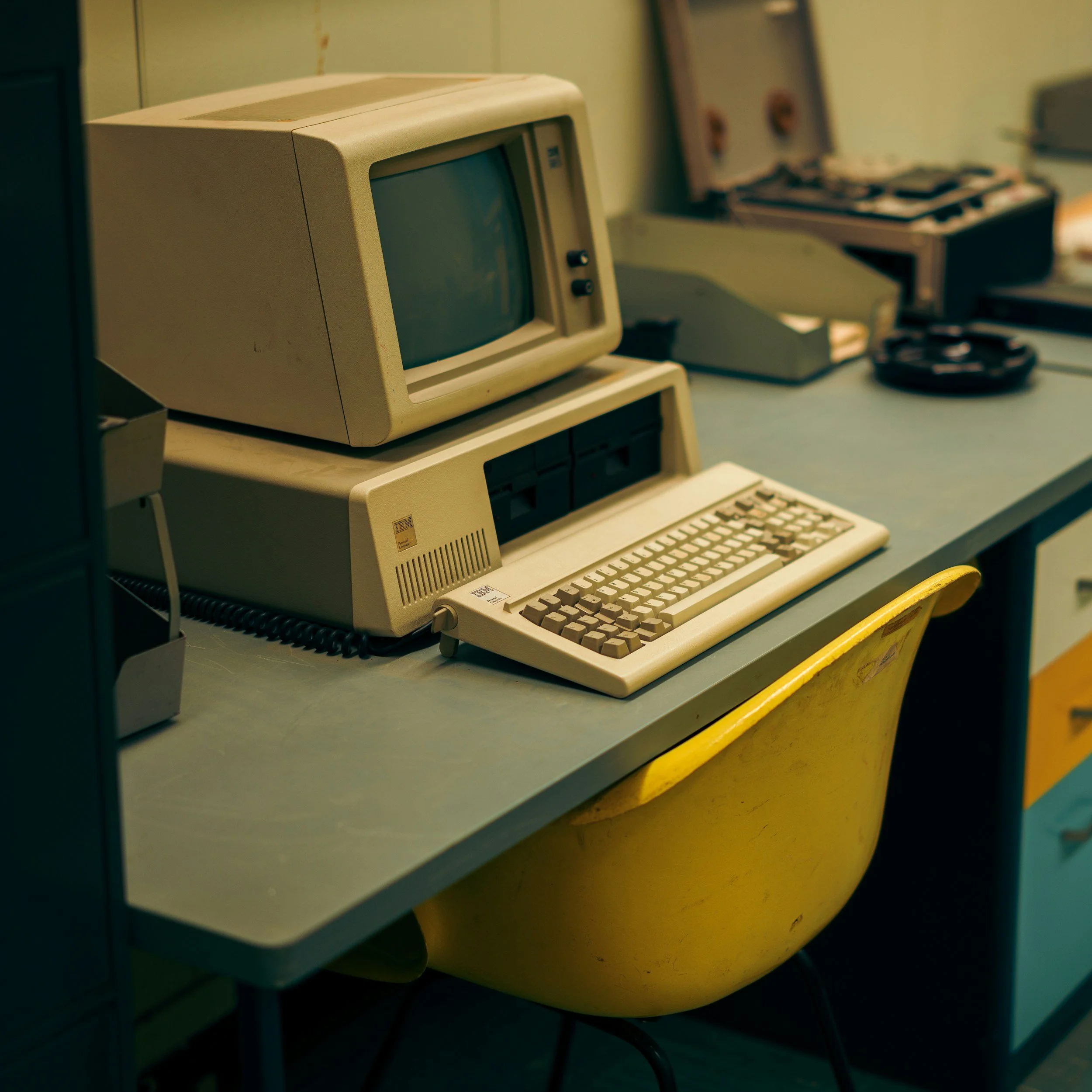
Old phones, computers, tablets, and smart devices can contain years of personal information. Throwing a device away without preparing it may expose photos, messages, passwords, financial records, location history, and access to online accounts.
Electronics also contain batteries and materials that may require special handling. A safe disposal process should address both data security and responsible recycling.
Decide Whether to Reuse or Recycle the Device
A working device may still be suitable for resale, trade-in, donation, repair, or use by another family member. Reuse can extend the product’s life and reduce the demand for new materials.
Recycling is usually more appropriate when a device is:
Broken beyond practical repair
No longer supported with security updates
Missing essential parts
Unsafe to charge or operate
Rejected by donation programs
Too old to serve a reasonable purpose
Do not donate a device simply to avoid disposal costs. Confirm that the organization accepts its type, age, and condition.
Make a List of the Devices Being Removed
Personal data can be stored in more products than a phone or laptop. Review the home or office for:
Desktop and laptop computers
Phones and tablets
External hard drives
USB drives and memory cards
Printers and scanners
Routers and modems
Smartwatches and fitness trackers
Gaming consoles
Digital cameras
Smart speakers and displays
Security cameras and video doorbells
Streaming devices
E-readers
GPS devices
Include chargers, batteries, cases, cables, and accessories. A recycler may accept some items but not others.
Back Up Important Information
Before erasing anything, save the files you want to keep. Depending on the device, this may include:
Photos and videos
Contacts
Messages
Documents
Financial records
Browser bookmarks
Password vaults
Health or fitness data
Authenticator app accounts
Software license information
Open several files from the backup to confirm that it works. Do not assume a sync icon means every item transferred successfully.
If moving to a new device, verify that contacts, photos, email, and essential apps are available there before resetting the old one.
Transfer Account Access
Some devices contain information needed to access other accounts. Moving an authenticator app, passkey, phone number, or password vault incorrectly can lock you out after the old device is erased.
Before disposal:
Transfer authenticator accounts
Save necessary recovery codes
Move the phone number or SIM service
Confirm access to the primary email account
Update account recovery information
Transfer locally stored passkeys when necessary
Deactivate paid software licenses
Deauthorize media and shopping accounts
Test important logins from the replacement device before continuing.
Sign Out and Remove the Device From Accounts
Signing out does not erase stored files, but it can help disconnect the device from online services.
Remove or sign out of:
Email accounts
Cloud storage
Banking and payment apps
Social media
Browsers and password managers
Shopping accounts
Streaming services
Employer systems
Smart-home platforms
Manufacturer accounts
Disable activation locks and device-finding features according to the manufacturer’s instructions. If these remain active, a legitimate buyer, recipient, or refurbisher may be unable to use the device.
After resetting, review your online account’s device list and remove the old product if it still appears.
Remove SIM Cards and Removable Storage
Take out any physical SIM card, microSD card, USB receiver, or other removable storage.
A memory card may contain photographs, downloads, documents, or app data even after the main device has been reset. Reuse it, sanitize it separately, or take it to a provider capable of secure media destruction.
If a SIM card will not be reused, ask the mobile carrier about appropriate disposal. Do not leave it in a phone being donated, sold, or recycled.
Electronic SIM service should also be transferred or removed according to the carrier’s and device manufacturer’s instructions.
Reset Phones and Tablets Properly
Deleting individual photos, contacts, or apps is not enough. Deleted information may remain recoverable, and signed-in accounts may still be accessible.
Use the device’s official erase or factory-reset process after completing the backup and account-transfer steps. The exact sequence differs by manufacturer and operating system.
A typical process involves:
Backing up the device
Transferring authentication methods
Signing out of accounts
Disabling activation locks
Removing SIM and memory cards
Starting the full erase or factory reset
Confirming that the device returns to its initial setup screen
Use the current manufacturer instructions for the specific model. After the reset, do not proceed through setup or reconnect the device to personal accounts.
Sanitize Computer Storage
Moving files to the recycle bin or deleting a user account does not securely remove all data from a computer.
Modern operating systems may offer a reset or erase function with an option intended for selling, donating, or recycling the computer. Follow the computer or operating-system manufacturer’s instructions for wiping the specific type of storage.
The appropriate method depends on whether the computer uses:
A traditional hard disk drive
A solid-state drive
Built-in encrypted storage
Removable storage
Multiple internal drives
Overwriting methods designed for older hard drives may not work the same way on solid-state storage. Manufacturer-supported secure erase or cryptographic erase options may be more appropriate for compatible devices.
If the computer held highly sensitive business, health, financial, client, or legal information, consider using a qualified data-destruction provider. Ask whether the company follows a recognized media-sanitization standard and whether it can provide a certificate of destruction.
Do not attempt to burn, smash, drill, or shred electronic storage at home. Batteries, sharp fragments, dust, and hazardous materials can create serious risks.
Remember Printers, Routers, and Smart Devices
Connected devices may store network names, email addresses, scanned documents, call logs, recordings, or account credentials.
Printers and Scanners
A multifunction printer may retain fax numbers, address books, network settings, print jobs, or scanned files. Use its initialization or data-erasure function and remove any memory card or internal storage when applicable.
Routers and Modems
Reset the router or modem using the manufacturer’s procedure. Remove it from the internet provider or account dashboard if it was registered there. Do not assume pressing the reset button briefly completed a full factory reset.
Smart-Home Devices
Remove cameras, speakers, displays, thermostats, doorbells, and hubs from the connected account. Delete recordings where necessary, remove memory cards, and factory-reset each product.
Wearables and Gaming Systems
Unpair the device, remove payment methods and accounts, back up wanted data, and complete the official reset. Gaming systems may contain saved payment information, messages, and personal profiles.
Verify That the Data Is Gone
After erasing a device, turn it on without signing in. It should display the initial setup screen rather than your home screen, files, or accounts.
Check that:
Personal profiles are absent
Stored photos and documents are unavailable
Account credentials are removed
Activation lock has been disabled when appropriate
Removable cards and SIMs are gone
The device is no longer trusted by online accounts
If the device will not turn on, you may not be able to confirm erasure. A certified electronics recycler or data-destruction service can explain its process for handling inaccessible storage.
Choose a Responsible Disposal Option
Electronics should not automatically go into household trash or a curbside recycling bin. Rules and available programs differ by state and community.
Possible options include:
Manufacturer take-back programs
Retailer recycling programs
Mobile carrier trade-ins
Municipal electronics collection events
Household hazardous waste facilities
Nonprofit technology-refurbishment programs
Certified electronics recyclers
The EPA recognizes R2 and e-Stewards as accredited certification standards for electronics recyclers. Certification does not eliminate the need to ask questions, but it can provide evidence that the recycler follows audited handling practices.
Ask a recycler:
Which devices it accepts
Whether there is a fee
How personal data is handled
Whether devices are reused or dismantled
Whether batteries must be removed
Whether it uses certified downstream processors
Whether proof of recycling or data destruction is available
Businesses may need additional documentation to comply with privacy, record-retention, or industry requirements.
Handle Batteries Separately
Lithium-ion batteries and devices containing them should not go into household garbage or ordinary municipal recycling bins. They can be damaged by collection and sorting equipment, creating a fire risk.
Take them to an approved battery or electronics collection location. Follow the program’s instructions for protecting terminals, packaging loose batteries, and separating different battery types.
Do not charge, puncture, bend, crush, or place pressure on a battery that is swollen, leaking, unusually hot, damaged, or producing an odor. Move away from it if doing so is safe, keep it away from heat and combustible materials, and contact the local fire department’s non-emergency line, household hazardous waste program, or manufacturer for instructions.
A device with a nonremovable battery should usually be delivered intact to a program that accepts it.
Protect Records During Business Disposal
Business devices may contain employee, customer, tax, payment, or confidential company information. Disposal should follow a written process rather than depend on an employee deleting files.
Record:
The device and serial number
The assigned user
The storage media it contained
The sanitization method
The person or vendor completing the work
The date of transfer or destruction
The final destination
Any certificate of recycling or destruction
Confirm record-retention duties before erasing business information. Data should not be destroyed if it must be preserved for taxes, litigation, regulatory compliance, or an active investigation.
Use a Final Disposal Checklist
Before a device leaves your control:
Back up important files.
Transfer authentication and account access.
Sign out and disable device locks.
Remove SIM cards and removable storage.
Use the correct reset or sanitization method.
Verify that personal information is no longer accessible.
Separate batteries when the program requires it.
Choose an appropriate take-back or recycling provider.
Keep a receipt for valuable trade-ins or business equipment.
Preparing electronics takes more time than placing them in a collection box, but it reduces the chance of losing important files, exposing personal data, or creating a battery and recycling hazard.
This article provides general educational information and is not individualized cybersecurity, environmental, legal, or records-management advice. Electronics and battery disposal requirements vary by state and local jurisdiction.
