
How to Secure Your Home Wi-Fi Network: Router Settings and Guest Access
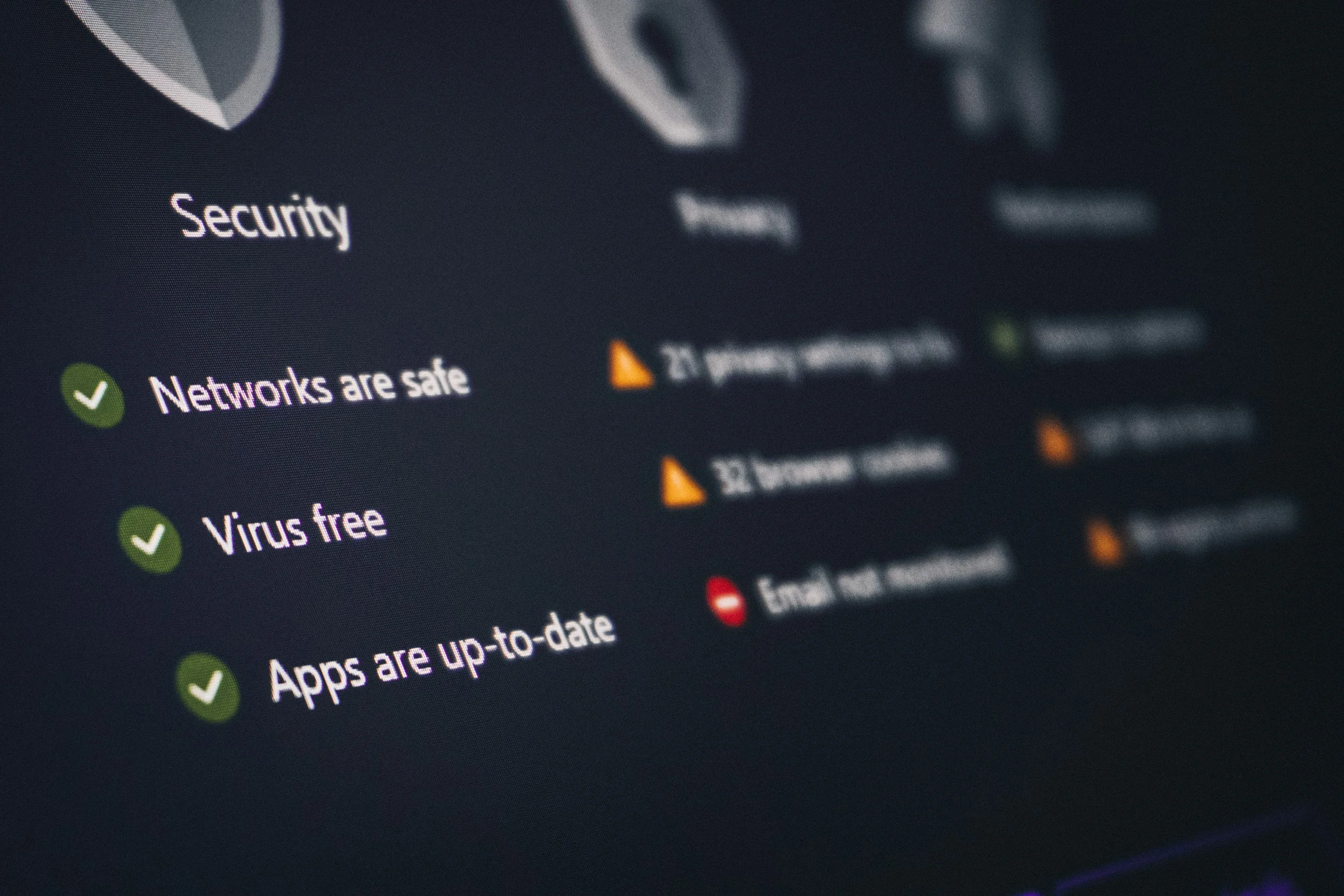
A home router connects computers, phones, security cameras, televisions, speakers, and smart appliances to the internet. If its settings are weak or outdated, one compromised device can create problems for the rest of the network.
Securing home Wi-Fi does not require advanced networking knowledge. The most important steps are changing default credentials, using modern encryption, installing router updates, and separating guest devices from the primary network.
Find the Router’s Settings
Router settings are usually available through a mobile app or a local administration page opened in a web browser. The address and initial instructions may appear:
On a label attached to the router
In the setup guide
In the internet provider’s app
On the manufacturer’s support website
Connect to the home network before attempting to sign in. Avoid changing router settings through public Wi-Fi.
Before making major changes, save the current configuration if the router provides a backup option. Record the internet provider’s support number in case the connection must be restored.
Change the Router Administrator Password
The router administrator password controls access to settings. It is different from the password used to join the Wi-Fi network.
Change any default administrator credentials immediately. Default usernames and passwords may be widely known or published online.
Use a long, unique password that is not reused for email, banking, social media, or the Wi-Fi connection itself. Store it in a reputable password manager or another secure location.
If the router is managed through an online account, enable two-factor authentication when available.
Create a Strong Wi-Fi Password
The Wi-Fi password allows devices to connect to the network. Use a different password from the router administrator password.
A strong Wi-Fi password should be:
Long
Unique to the network
Difficult to guess
Unrelated to the address, surname, or telephone number
Shared only with people who need it
A passphrase made from several unrelated words can be easier to enter than a short collection of random symbols while still being difficult to guess.
Change the password if it has been widely shared, appeared in an exposed message, or remains set to the manufacturer’s default.
After changing it, every authorized device will need to reconnect.
Use WPA3 or WPA2 Encryption
Wi-Fi encryption protects information traveling wirelessly between devices and the router.
The Federal Trade Commission recommends using WPA3 Personal or WPA2 Personal. WPA3 is newer, but WPA2 remains suitable for devices that do not support WPA3.
Avoid:
WEP
Original WPA
Open or unsecured networks
These older options do not provide adequate modern protection.
Some routers offer a WPA2/WPA3 transition mode. This can allow older and newer devices to connect, although the exact behavior varies by model. Use the most secure setting supported by all essential devices.
If the router offers only WEP or original WPA even after an update, replacement is worth considering.
The FTC’s guide to securing a home Wi-Fi network provides additional information about router passwords, encryption, updates, and guest access.
Update the Router’s Firmware
Router firmware is the software that controls the device. Manufacturers release updates to fix security problems, improve reliability, and add features.
In the administration settings:
Find the firmware or software update section.
Check the current version.
Install an available update from the router manufacturer or internet provider.
Enable automatic security updates if supported.
Allow the router to restart completely.
Do not install firmware from an unofficial download site. An interrupted or incorrect update can stop the router from working.
A router that no longer receives security updates may need replacement even if it still provides an internet connection.
Rename the Network
The Wi-Fi network name is also called the SSID. Replace a default name that reveals the router’s brand or model.
Choose a neutral name that does not include:
A family name
Street address
Apartment number
Employer
Router model
Other identifying information
Hiding the network name is not a meaningful substitute for encryption and a strong password. Devices can still detect a hidden network through other technical means, and hiding it can make ordinary connection setup less convenient.
Create a Guest Network
A guest network gives visitors internet access without giving them the main Wi-Fi password or direct access to every home device.
Create a separate network name and password, then check for settings such as:
Guest isolation
Block access to local devices
Prevent access to the router administration page
Limit bandwidth
Set an expiration time
Disable guest access when not needed
Use the guest network for visitors rather than sharing the primary network credentials.
A guest network can also be useful for smart-home products such as plugs, speakers, appliances, and some cameras. However, device isolation may prevent products from communicating with a phone, hub, printer, or streaming device. Test important functions before moving everything.
The FTC notes that a separate guest login reduces the number of people who know the main password and can help keep a visitor’s infected device away from the primary network.
Turn Off WPS
Wi-Fi Protected Setup, commonly called WPS, allows a device to connect by pressing a router button or entering a short PIN.
Although convenient, WPS can weaken network security, particularly when PIN-based setup is enabled. Turn it off after connecting devices unless it is genuinely needed.
Devices can still be joined by selecting the Wi-Fi network and entering its password normally.
Disable Remote Management
Remote management allows the router’s settings to be accessed over the internet from outside the home.
Most households do not need this feature. Disable settings labeled:
Remote administration
Remote management
Web access from WAN
Administration from internet
Cloud management, if not used
If remote management is necessary, use the manufacturer’s secure access method, protect the account with a unique password and two-factor authentication, and keep the router fully updated.
Local administration should also use a secure connection when the router supports it.
Review UPnP and Port Forwarding
Universal Plug and Play, or UPnP, lets devices automatically request network access and open connections. This can simplify gaming, streaming, and smart-device setup, but it may also allow a compromised device to change router rules.
Disable UPnP when it is not required. If turning it off breaks an essential service, investigate whether a narrower manual setting is possible.
Review the port-forwarding list as well. Remove rules that are no longer needed or that were created for devices no longer in the home.
Do not open ports based on instructions from an unexpected caller, pop-up, or unsolicited support message.
Confirm That the Firewall Is On
Most consumer routers include a built-in firewall. Check the security settings and confirm that it is enabled.
A router firewall helps block unsolicited traffic coming from the internet. It does not replace:
Device updates
Antivirus or built-in security tools
Strong account passwords
Two-factor authentication
Safe browsing habits
Backups
Avoid disabling the firewall to solve a connection problem unless a trusted support source has identified a specific reason and provided a safer alternative.
Review Connected Devices
Open the router’s device list, which may be labeled:
Connected devices
Client list
Network map
Attached devices
DHCP clients
Identify each phone, computer, television, camera, appliance, printer, and game console.
An unfamiliar entry is not always an intruder. Devices may appear under a manufacturer name or use private randomized addresses. Compare the device information carefully before blocking it.
Remove or disconnect products that are no longer used. Update the software and change default passwords on smart devices that remain connected.
The FTC’s guidance on securing internet-connected devices recommends reviewing connected devices, installing updates, changing default credentials, and disabling unused features.
Protect the Router Physically
Place the router where visitors cannot easily press buttons, connect cables, or perform a factory reset. In a shared residence, decide who is authorized to change settings.
Do not photograph and publicly share a router label that displays:
Default password
Serial number
QR connection code
Administration address
Device identifiers
If buying or receiving a used router, perform a factory reset and install current firmware before using it. Configure it as a new device instead of trusting the previous settings.
Know When to Replace the Router
Replacement may be appropriate when:
Security updates are no longer available
WPA2 and WPA3 are unsupported
The manufacturer has ended support
Administration uses outdated or insecure software
The router behaves unpredictably after a reset
Important security features are missing
The internet provider recommends a supported replacement
Speed is not the only reason to upgrade. A router can continue providing acceptable coverage after its security support has ended.
Home Wi-Fi Security Checklist
Review these settings at least a few times each year:
Router administrator password is unique.
Wi-Fi password is strong and separate.
WPA3 or WPA2 encryption is enabled.
Firmware is current.
Automatic updates are active when available.
Network name does not reveal personal details.
Guest access uses a separate password.
Guest devices cannot reach the main network.
WPS is disabled.
Remote management is disabled unless needed.
UPnP and port-forwarding rules were reviewed.
Router firewall is enabled.
Connected devices are recognized.
Unused smart devices are disconnected.
The router still receives manufacturer support.
A secure home network is built through several ordinary settings rather than one advanced feature. Strong credentials, current software, modern encryption, and properly separated guest access address many of the most common weaknesses.
